


You’ve got 200 products to update after a warehouse count. The thought of clicking into each product, scrolling to inventory, changing the number, and hitting update 200 times makes you want to close your laptop.
And CSV exports? By the time you’ve mapped columns and fixed import errors, the morning’s gone.
There’s a faster way to bulk edit WooCommerce stock. No spreadsheets. No export-import cycles. Just a table where you change numbers directly.
The Problem with WooCommerce’s Default Stock Editing
WooCommerce forces you to edit products one at a time. Each update follows the same tedious loop:
- Find the product in your list
- Click to open the edit screen
- Scroll down to the Inventory tab
- Change the stock number
- Hit Update
- Go back to the list
- Repeat
For 10 products, that’s annoying. For 100 products, that’s an hour gone. For 500 products after a big shipment? You’re burning half a day.
The other problem: you can’t see all your stock levels at once. WooCommerce shows products in a list, but you have to click into each one to see actual quantities. There’s no bird’s-eye view of your inventory.
Why CSV Import/Export Isn’t the Answer
The obvious alternative is exporting your products to a spreadsheet, editing there, and importing back. Tools like WP All Import handle this well.
But for straightforward stock updates, CSV workflows create more problems than they solve:
The export takes time. Especially with variations. A store with 500 variable products might export 3,000+ rows.
Column mapping is error-prone. Map the wrong column during import and you’ve just overwritten product titles with stock numbers. Ask anyone who’s done it.
Imports can fail silently. You think everything updated, but half the rows didn’t match because of SKU formatting differences.
It’s overkill for simple updates. You don’t need enterprise import tooling to change 30 quantities. You need a faster way to edit what’s already in WooCommerce.
CSV import has its place—syncing from external inventory systems, migrating between platforms, bulk price updates. But for “I need to fix these stock numbers,” there’s a better approach.
The Faster Way: Inline Table Editing
What if you could edit stock the way you edit a spreadsheet? Click a cell, type the new number, move to the next one.
That’s inline table editing. You see all your products in a table view—name, SKU, stock quantity, status—and you edit directly in that table. No page loads. No drilling into individual products.
Here’s what this looks like in practice:
- Filter to show only the products you need (by category, stock status, or search)
- See all quantities at a glance in a single view
- Click any stock field to edit it inline
- Tab to the next product, type, tab again
- Changes save immediately—no “Update” button per product
A task that takes an hour with WooCommerce’s default editing takes 10 minutes with inline tables.
How to Bulk Edit Stock with Stock Editor
Stock Editor for WooCommerce gives you exactly this workflow.
After installing, you’ll find it in your WooCommerce menu. Open it and you see a table of all your products with their current stock levels.
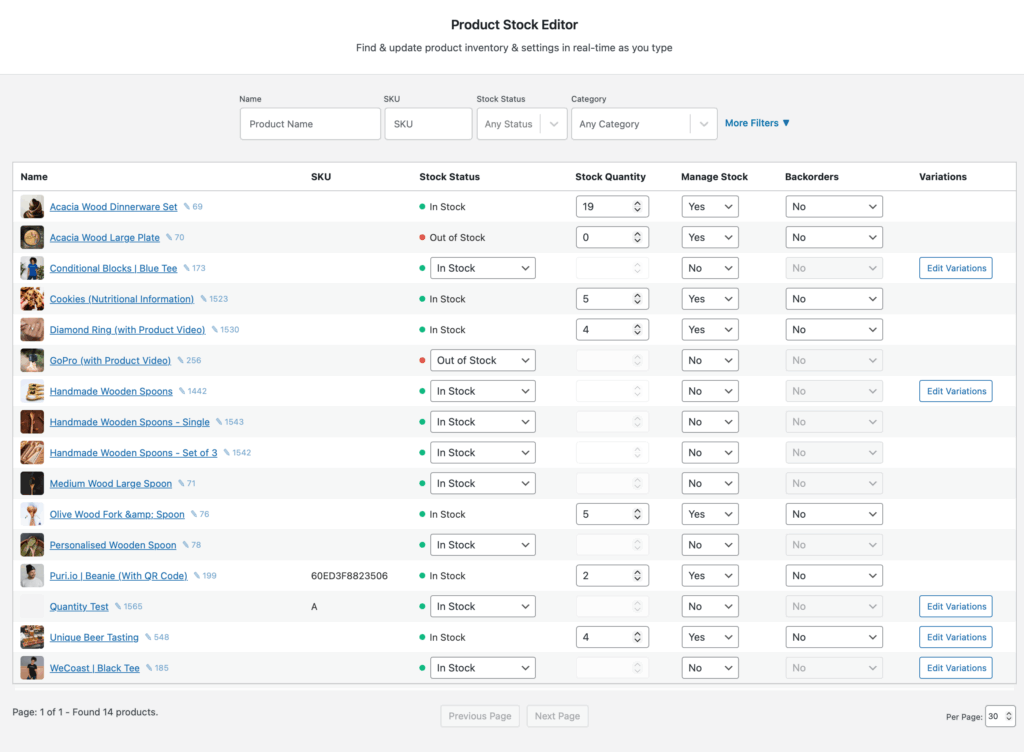
Filter to what you need. The search bar and dropdowns let you narrow down by product name, SKU, category, or stock status. Running low on items in your “Electronics” category? Filter to that category and “Low Stock” status. Now you’re only looking at what matters.
Edit inline. Click any stock quantity field. It becomes editable. Type the new number. The change saves automatically. No confirmation dialogs, no page refreshes.
Move fast. Tab moves you to the next field. You can update 20 products in under a minute once you get the rhythm.
See stock health at a glance. Color-coded status indicators show which products are in stock (green), low (yellow), or out (red). You’ll spot problems before opening a single product.
Handle variations efficiently. Variable products show a variations icon. Click it to open a popup table with all variations—sizes, colors, whatever attributes you have. Edit all variation stock in one place without the accordion-expanding nightmare of WooCommerce’s default editor. (More on editing variation stock quickly in our dedicated guide.)
When You Actually Need CSV Import
To be fair, there are situations where CSV workflows make sense:
Syncing from an external system. If your warehouse management software exports CSV and you need to pull those numbers into WooCommerce regularly, an import tool like WP All Import is built for that.
Migrating from another platform. Moving from Shopify, Magento, or another system means bulk importing products. CSV is the right tool.
Bulk price updates with formulas. Need to increase all prices by 10%? Spreadsheet formulas plus import can handle that.
But for regular stock management—after shipments arrive, during inventory counts, before big sales—inline editing beats the export-edit-import cycle every time.
Stop Clicking, Start Editing
You’ve got better things to do than click through 200 product pages. Your warehouse count shouldn’t take longer to enter than it took to count.
Inline table editing gives you spreadsheet-speed stock updates without leaving WordPress. Filter to what you need, click to edit, tab to the next one, done.
Stock Editor for WooCommerce does exactly this. Update 100 products in the time it used to take to update 10.