


Stock Editor for WooCommerce: Bulk Edit Stock in a Spreadsheet Table
Manage your inventory across products efficiently. Focus on your business save time and money with our fast stock management plugin.
WordPress 5.8 or later
WooCommerce 8 or later
PHP 7.4 - 8.4
Designed For

Filter your WooCommerce products by name, SKU, or stock status, then edit stock quantities, backorder settings, and stock management settings for all of them in one table.
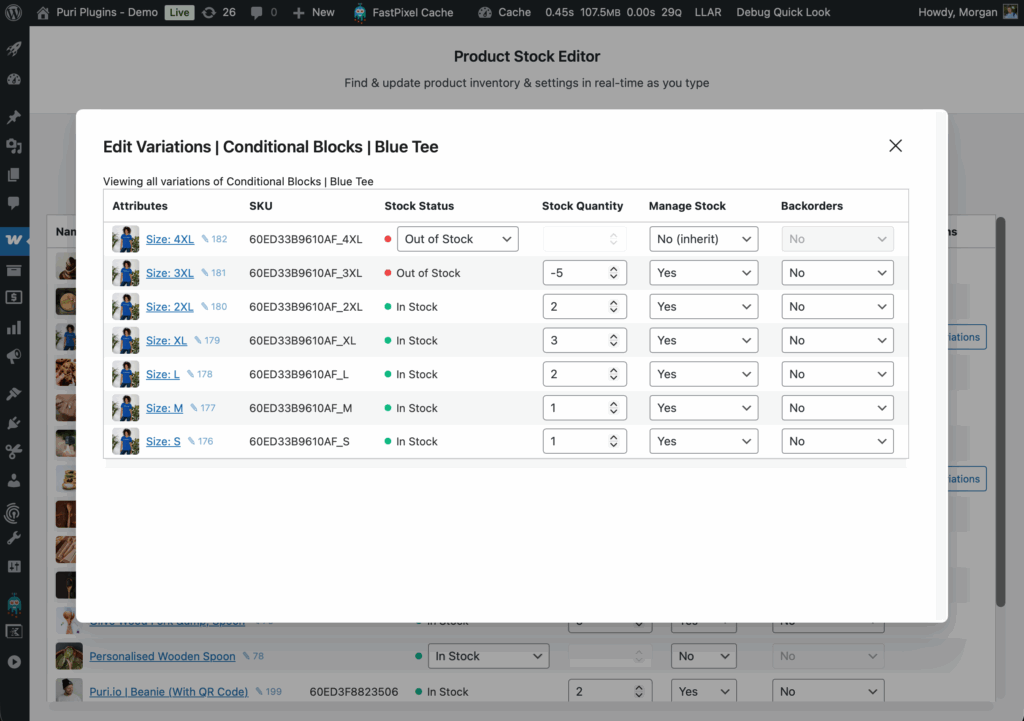
Stock Editor for WooCommerce works with simple, variable, bundled, and subscription products. You can open a variable product’s variations in a pop-up table without leaving the list.
See pricing and buy Stock Editor for WooCommerce
Requires WordPress 5.8+, WooCommerce 8+, and PHP 7.4 through 8.4. Covered by a 14-day money-back guarantee.
How it works: filter, edit, save
When a delivery, supplier shortage, or stock count affects several products, Stock Editor gives you a filtered list to edit in one table. Stock Editor puts every product you need to change in one view so you can work through them in a single pass.
- Filter the products you need. Narrow the list by product name, SKU, or stock status. Filtering by SKU suits a supplier delivery or a stock count. Filtering by stock status narrows the list to products with the selected status.
- Edit stock in the table. Change stock quantities directly in the rows, and adjust backorder settings and stock management settings in the same view. For variable products, open the variations in a pop-up table and edit each variation’s stock there.
- Save your changes. Save the stock quantity and setting changes through the editor’s available interface.
What Stock Editor filters, edits, and supports
We build focused WooCommerce tools for specific store-management jobs. Stock Editor focuses on stock quantity, backorder settings, and stock management settings.
- Filter products by name, SKU, and stock status.
- Bulk edit stock quantity across the filtered products in a table-style interface.
- Edit backorder settings for each product from the same table.
- Edit stock management settings, so you can turn stock tracking on or off per product without opening it.
- Edit variations in a pop-up table. Variable products open their variations in a pop-up table, and variation updates apply instantly.
- Supported product types: simple, variable, bundled, and subscription products.
- WordPress, WooCommerce, and React integration. The product page says product data is handled through the WooCommerce API.
How the table workflow compares with editing products one by one
WooCommerce offers other stock-management options. To edit one product, open it, go to its Inventory tab, change stock, and select Update. Stock Editor offers a different workflow: filter products and edit them together in a table.
The difference shows up most when you compare it with the individual product screen. To change stock there, you open the product, go to its Inventory tab, change the stock value, and select Update. Then you repeat that for the next product. Our guide to bulk editing WooCommerce product stock without CSV exports walks through that path step by step.
| Task | Individual product screens | Stock Editor table |
|---|---|---|
| Finding the products to change | Search or browse the products list, then open each product | Filter by name, SKU, or stock status in the editor |
| Changing stock quantity | Inventory tab on each product, then Update | Edit the quantity in each row of the table |
| Backorder and stock management settings | Set inside each product’s inventory settings | Edit in the same table as stock quantity |
| Variations of a variable product | Edited within that product’s edit screen | Edited in a pop-up table from the product’s row |
| Seeing several products at once | One product open at a time | All filtered products listed together |
If you mostly adjust stock on a handful of products as orders come in, the product screen is probably enough. If your routine involves updating stock across a set of products in one sitting, such as a delivery, a stock count, or a seasonal reset, the table workflow lets you do that in one view.
For a refresher on WooCommerce’s built-in inventory options, read our overview of default WooCommerce stock management. Developers who want stock changes driven by code instead of an admin screen can see our walkthrough on programmatically changing stock levels. It covers WooCommerce functions and the REST API, which is a separate approach from Stock Editor.
Questions to answer before you buy
Which product types does Stock Editor support?
Simple, variable, bundled, and subscription products. You can filter, view, and edit all four types in the stock table.
How do I edit variations of a variable product?
Open the variable product’s variations in a pop-up table from the main editor. You can change each variation’s stock there, and variation updates apply instantly.
What are the system requirements?
- WordPress 5.8 or later
- WooCommerce 8 or later
- PHP 7.4 through 8.4
The product page describes WordPress, WooCommerce, and React integration, with product data handled through the WooCommerce API.
What if it doesn’t fit my workflow?
Stock Editor for WooCommerce is covered by a 14-day money-back guarantee.
Pricing
Licensing and purchase options for Stock Editor for WooCommerce are in the pricing panel on the Stock Editor product page. One available option is an annual license for one site at $49.00 USD. If you run more than one Puri plugin, compare it with our bundle pricing.
You must log in and be a buyer of this download to submit a review.
Or see bundle pricing
Change currency
Our promise
 14-day money-back guarantee
 Great support to help you