


A customer lands on your shop page looking for a blue t-shirt in size Large.
They see “Classic T-Shirt” with a price range of “$25–$35.” No colors. No sizes. Just a product card with “Select Options.”
They click in. Find the blue one. Scroll through sizes. Add to cart. Hit back. Now they want shorts. Same process.
Three products means nine clicks minimum. That’s friction. Friction means abandonment.
WooCommerce hides your variations by default. Here’s how to show them.
The Hidden Variation Problem
WooCommerce’s shop page displays parent products, not variations. A variable product with 20 size/color combinations shows as one item. Customers see:
- The parent product title (“Classic T-Shirt”)
- A price range if variations have different prices (“$25–$35”)
- The featured image (usually one variation or a generic shot)
- A “Select Options” button
The actual variations—Blue Large, Red Medium, Black Small—are invisible until the customer clicks through to the product page.
For stores selling sized products, colorways, or any differentiated variations, this creates a browsing experience that fights against discovery. Customers want to scan options visually. WooCommerce makes them click and hunt.
What Customers Actually Want
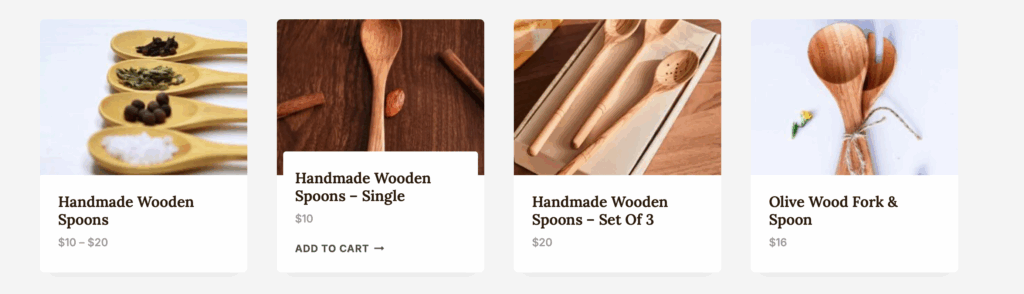
Watch how people shop clothing sites. They scroll the grid, scanning thumbnails. Blue catches their eye. They click that blue shirt. Done.
Now watch a WooCommerce store. They scroll the grid, see generic product photos, have no idea which colors are available, click in, scroll through options, decide they don’t like any colors, click back, try the next product.
Every unnecessary click is a chance to leave. Every hidden option is a product they might want but never see.
The stores converting best in fashion, accessories, and home goods show variations in the shop grid. Customer sees the blue shirt directly. One click adds it to cart.
Method 1: Quick View Plugins
Quick View plugins add a button that opens a lightbox with product details. Customer clicks “Quick View,” sees variations in a popup, selects, adds to cart.
This reduces page loads—you’re not fully navigating to the product page. But you’re still adding a step. The customer sees the grid, doesn’t know what variations exist, clicks Quick View to find out.
It’s an improvement over the default experience. It’s not the same as seeing variations directly in the grid.
Best for: Stores that want fewer page loads but don’t want to fundamentally change the shop layout.
Method 2: Variation Swatches
Swatch plugins add small color or size indicators to product cards. Customer sees the parent product plus swatches below it (blue circle, red circle, green circle). Click a swatch, the product image changes, then add to cart.
This is better. Variations are at least visible at the grid level. Customers can see available colors without clicking through.
But it still requires interaction. The customer sees swatches, has to click one, then add to cart. For stores with many variations, the swatches get crowded.
Best for: Stores where color is the main differentiator and there aren’t too many options per product.
Method 3: Expand Variations as Separate Products

Better Variations for WooCommerce Plugin
The full solution: show each variation as its own product in the shop grid.
Instead of one “Classic T-Shirt” card, you see:
- Classic T-Shirt – Blue, Large
- Classic T-Shirt – Blue, Medium
- Classic T-Shirt – Red, Large
- Classic T-Shirt – Red, Medium
Each one has its own image (the actual blue shirt, not a generic photo), its own price, and a direct “Add to Cart” button. No clicking through. No selecting options. See it, want it, add it.
This is how customers browse. They’re looking for the blue one. They find the blue one. They buy the blue one.
Better Variations for WooCommerce does exactly this.
How Better Variations Works
Better Variations expands your variable products in the shop loop. Each variation becomes its own grid item.
Installation is straightforward. Enable the plugin, configure which products to expand (all variable products, specific categories, or individual products), and your shop page updates.
Each variation shows its own image. If you’ve uploaded variation-specific images in WooCommerce, those display. The blue shirt shows the blue photo. The red shirt shows the red photo.
Prices are accurate. Instead of “$25–$35,” each variation shows its specific price. “$25” for the basic colors, “$35” for premium options. Customers know exactly what they’re paying.
Add to cart is direct. No “Select Options” ambiguity. One button adds that specific variation to cart.
Stock status displays correctly. Out-of-stock variations can show as such. Customers don’t click into a product page only to find their size is unavailable. (Combine with Stock Status for WooCommerce for enhanced stock display.)
Works with existing themes. Better Variations integrates with your shop loop, not against it. Grid layouts, list layouts, and most page builders work out of the box.
When to Expand, When to Keep Grouped
Expanding every variation isn’t always right. Consider your catalog.
Expand when:
- Variations look different (colors, patterns, styles)
- Customers shop visually
- You have strong variation images
- Variations are independently searchable products
Keep grouped when:
- Variations are size-only with identical appearance
- You have dozens of variations per product (grid gets crowded)
- Customers specifically search for the parent product
For a clothing store selling 5 colors × 5 sizes = 25 variations, you might expand color but not size. Show the blue shirt, red shirt, and green shirt as separate items. Customer clicks blue, then picks size on the product page.
Better Variations is configurable. You can expand for specific categories or products, not universally. Test what works for your mix.
Customers Can’t Buy What They Can’t See
Your variations are products. Real products with their own images, prices, and stock levels. Hiding them behind “Select Options” makes customers work for information that should be visible.
Expanding variations in the shop grid puts those products where shoppers can find them. One click to cart instead of three clicks through menus.
Better Variations for WooCommerce turns each variation into a visible, buyable product. Your customers find what they want faster. You sell more of what you have.
Related reading:
- Better Variations Getting Started Guide – Setup and configuration
- Better Variations Use Cases – When expansion works best
- How to Edit WooCommerce Variation Stock – Manage inventory for all those variations