


You sell t-shirts in 5 sizes and 4 colors. That’s 20 variations per product. You’ve got 30 products. That’s 600 stock fields to update.
WooCommerce wants you to click into each product, expand each variation’s accordion, edit the number, save, and move to the next one. There’s a better way.
Why Variable Product Stock Management is Painful
Variable products are where WooCommerce’s stock editing completely breaks down.
Each variation lives inside a collapsible accordion. To edit one variation’s stock, you click to expand it. You see the fields. You change the number. Then you collapse it and expand the next one. Or you leave them all open and scroll through a page that’s now 50 screens long.
You can only see one variation at a time—unless you want a mile-long page. There’s no way to compare stock levels across variations. Is the Medium Blue really out of stock, or is it the Large Blue? You have to expand both to check.
The save button is at the bottom. Make your changes, scroll down, save, wait for the page to reload. Repeat for the next product.
For a single product with 3 variations, this is merely annoying. For 30 products with 20 variations each, this is a full day of clicking. And you’ll make mistakes along the way—editing the wrong variation because they all look the same in those tiny accordions.
Parent Stock vs Variation Stock: A Quick Clarification
Before going further, let’s clear up a common confusion.
WooCommerce handles variable product stock in two ways:
Parent-level stock. The main product has a stock number. All variations share it. Sell any variation, the parent stock decreases. This is simpler but less precise—you can’t track which specific size or color is running low.
Variation-level stock. Each variation has its own stock number. The Small Blue has 10, the Medium Blue has 5, the Large Red has 0. You know exactly what’s available. This is what most stores need.
You control this with the “Manage stock?” toggle on each variation. If it’s OFF, variations use parent stock. If it’s ON, each variation tracks independently.
The catch: variation-level stock means more fields to manage. Twenty variations means twenty stock numbers to update. That’s where the editing pain kicks in.
Default Ways to Edit Variation Stock (And Their Limits)
The accordion method. Edit product, go to Variations tab, expand each variation, edit, save. We’ve covered why this is slow.
WooCommerce Quick Edit. The Quick Edit link in your product list lets you edit some product fields inline. Stock for simple products, yes. Variations? No. Quick Edit doesn’t touch them.
CSV export and import. Export your products, edit in a spreadsheet, import back. This works, but variations explode your row count—each variation becomes its own row. A 50-product store with 20 variations each becomes 1,000 rows to manage. Column mapping gets complicated. Import errors are common.
Bulk actions dropdown. You can select multiple products and apply bulk changes. But the stock options are limited—you can set all selected products to the same stock value, not update them individually. Useless for real inventory management.
None of these let you see all variations for a product in one view, compare their stock levels, and edit them quickly.
The Popup Table Approach
Here’s what actually works: a popup that shows every variation for a product in a table, all at once.
Click one button on the parent product. A popup appears showing:
| Variation | SKU | Stock | Status |
|---|---|---|---|
| Small / Blue | TSH-SM-BLU | 10 | In Stock |
| Medium / Blue | TSH-MD-BLU | 5 | Low Stock |
| Large / Blue | TSH-LG-BLU | 0 | Out of Stock |
| Small / Red | TSH-SM-RED | 8 | In Stock |
| … | … | … | … |
Every variation visible at once. Click any stock field to edit inline. Tab to move between fields. When you’re done, close the popup. The parent product row in the main table updates to reflect the changes.
Twenty variations in 30 seconds instead of 5 minutes of accordion expanding.
How to Update Variation Stock with Stock Editor
Stock Editor for WooCommerce gives you this popup table workflow.
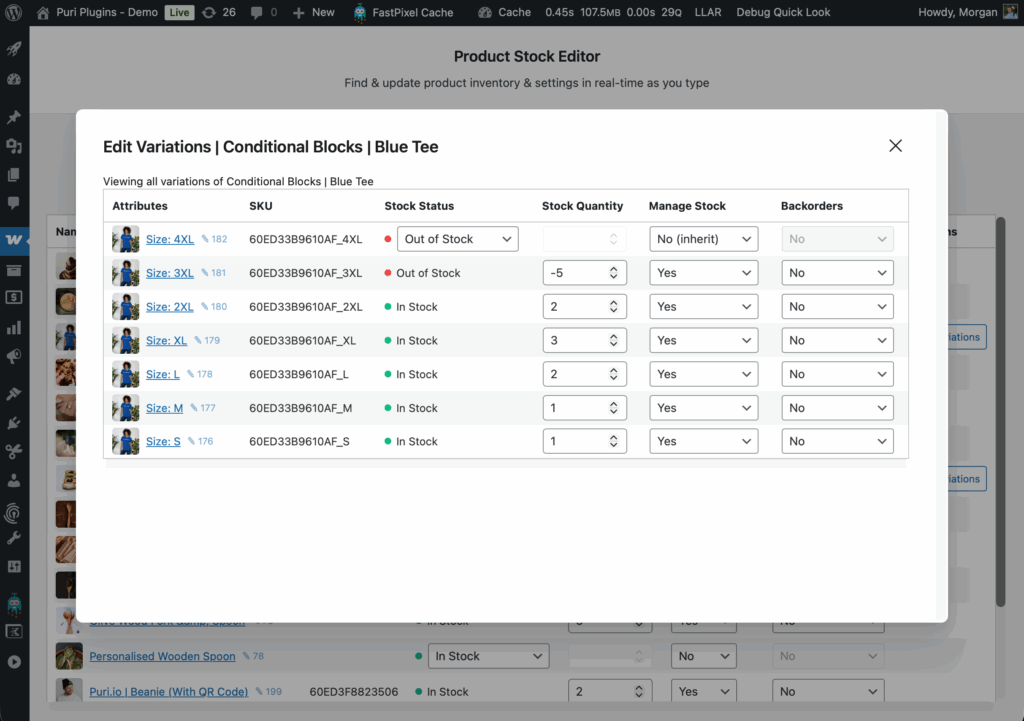
Find the parent product. In Stock Editor’s main table, your variable products show a variations icon (or count). This tells you the product has variations to manage.
Click to open the popup. One click opens a table showing all variations for that product. Each row is a variation with its attributes, SKU, current stock, and status.
Edit inline. Click any stock field. Type the new number. It saves automatically. The status color updates to reflect the new stock level.
Tab through variations. Need to update multiple variations? Tab moves you to the next stock field. Type, tab, type, tab. Keyboard-driven editing is faster than clicking each field.
Close and move on. When you’re done, close the popup. The main product table shows your updated totals. Click the next variable product and repeat.
Filter First, Then Fix
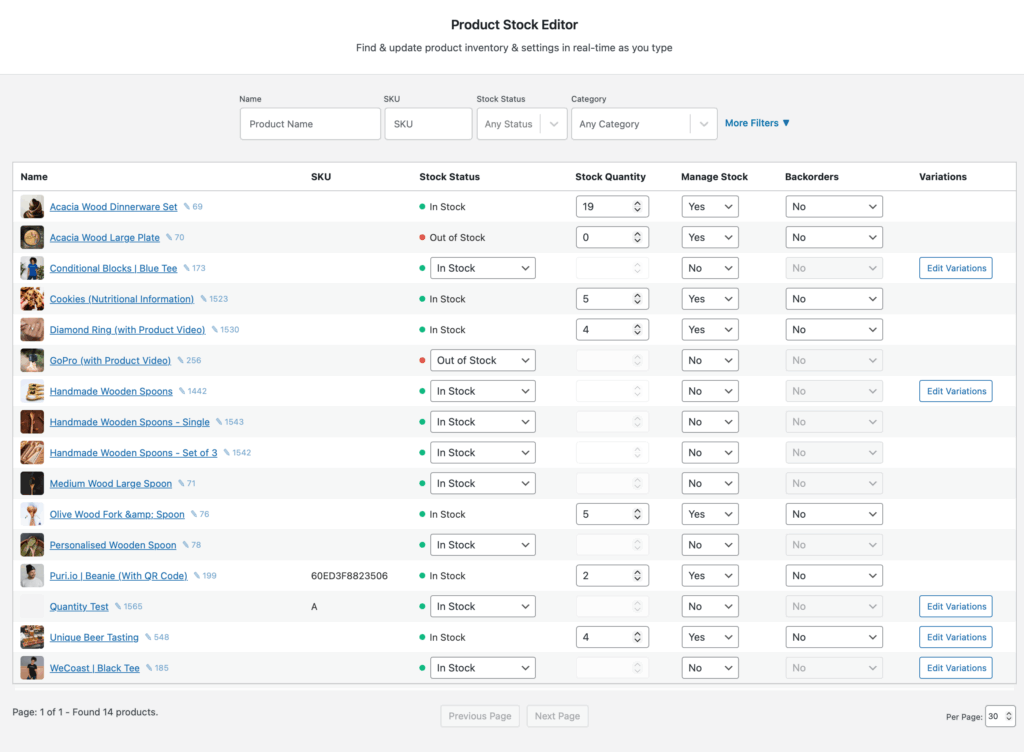
Stock Editor’s main table also lets you filter by stock status. Want to find all products—including variations—that are running low?
Filter the main table to “Low Stock” or “Out of Stock.” You’ll see which products have inventory problems. Open the variations popup for any variable product and you’ll see exactly which sizes or colors need restocking.
Color coding helps too. Red means out of stock. Yellow means low. Green means healthy. You spot problems visually before you even click.
Stop Expanding Accordions
Variable products shouldn’t mean variable amounts of frustration. If you’re clicking through 20 accordions per product, you’re working harder than you need to.
The popup table approach gives you what WooCommerce should have built in: see all variations at once, edit them in a table, and move on.
Stock Editor for WooCommerce handles this exactly. Update all your variation stock in a fraction of the time—without the endless expanding and collapsing.